
The Advanced Filtering feature allows you to build customized filters using multiple conditions and Boolean logic (
AND/OR) to precisely search, segment, and analyze your building portfolio.This functionality supports a wide range of applications, including:
- Preparing for regulatory disclosures by isolating buildings based on emissions, Energy Use Intensity (EUI), or geography
- Identifying high-impact opportunities for carbon reduction by filtering for energy- or emissions-intensive buildings
- Segmenting your portfolio by geography and tags such as building type
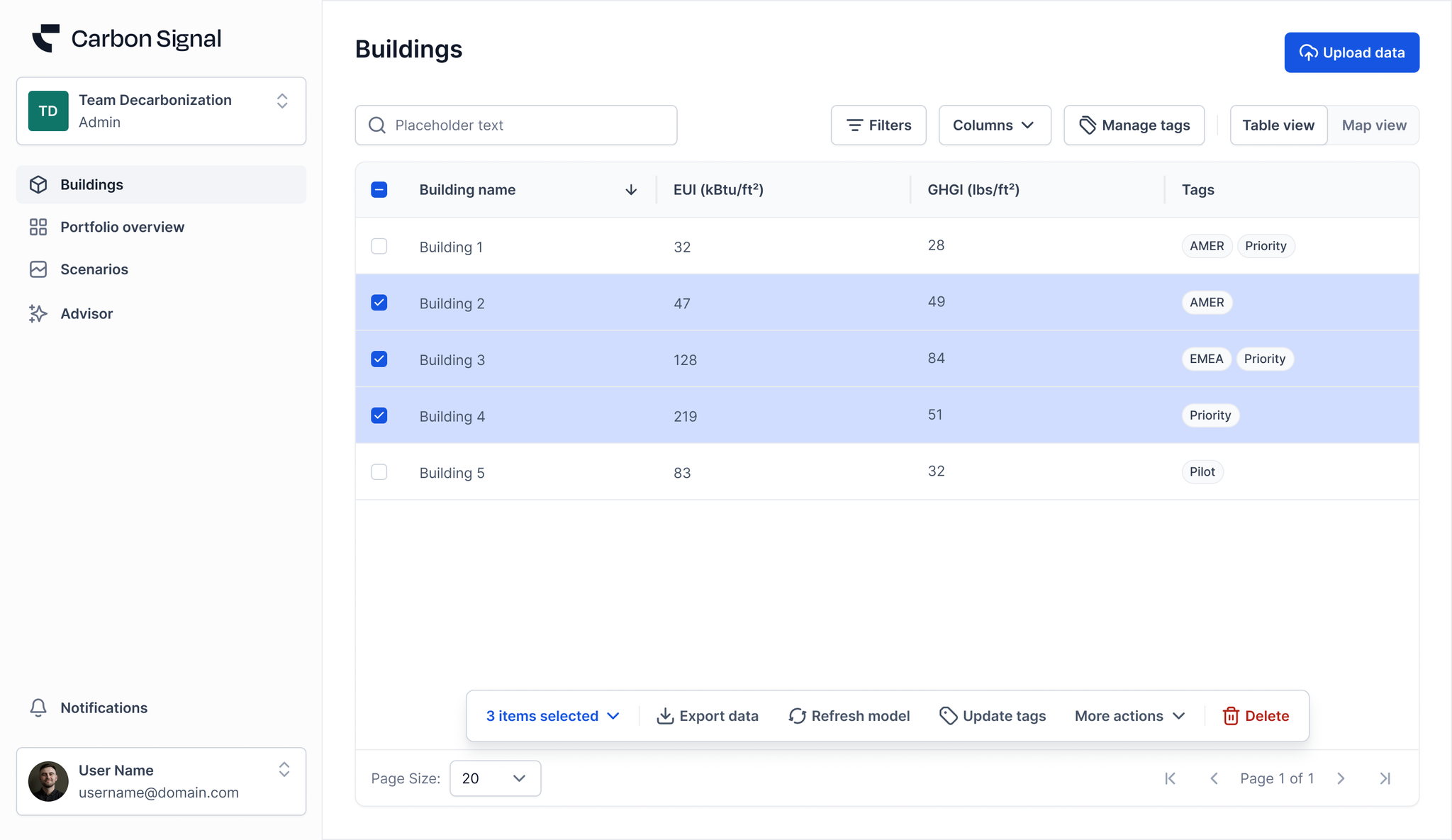
Overview
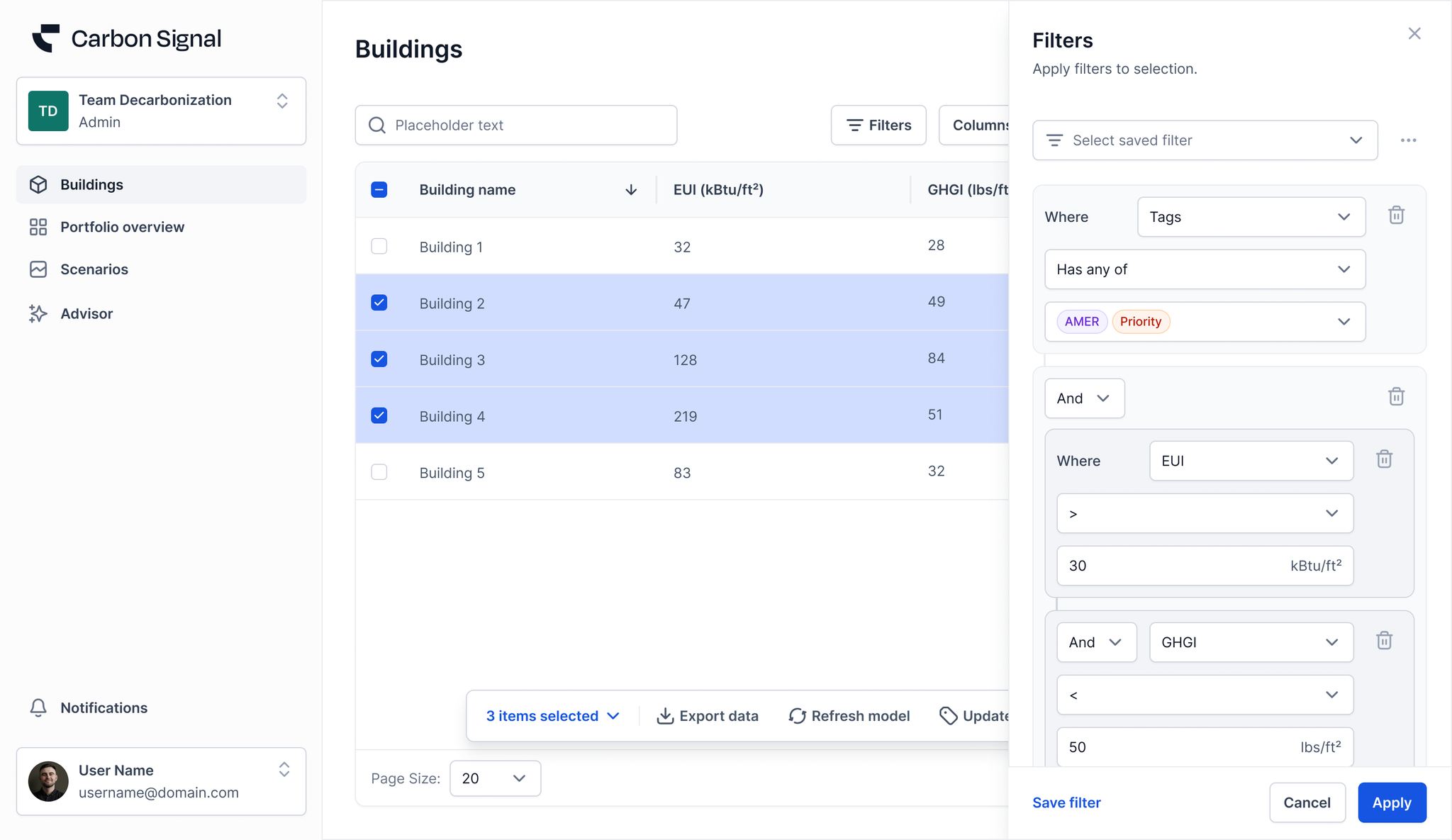
Advanced Filtering lets you apply one or more conditions across various building attributes. These conditions are grouped into Condition Groups, which support logic-based queries using
AND or OR operators.- Within a Condition Group, all conditions must use the same Boolean logic (AND or OR).
- Between Condition Groups, you can choose either AND or OR to define how groups relate to each other.
This enables the construction of highly flexible queries, such as “Find buildings that meet criteria A or (criteria B and criteria C).”
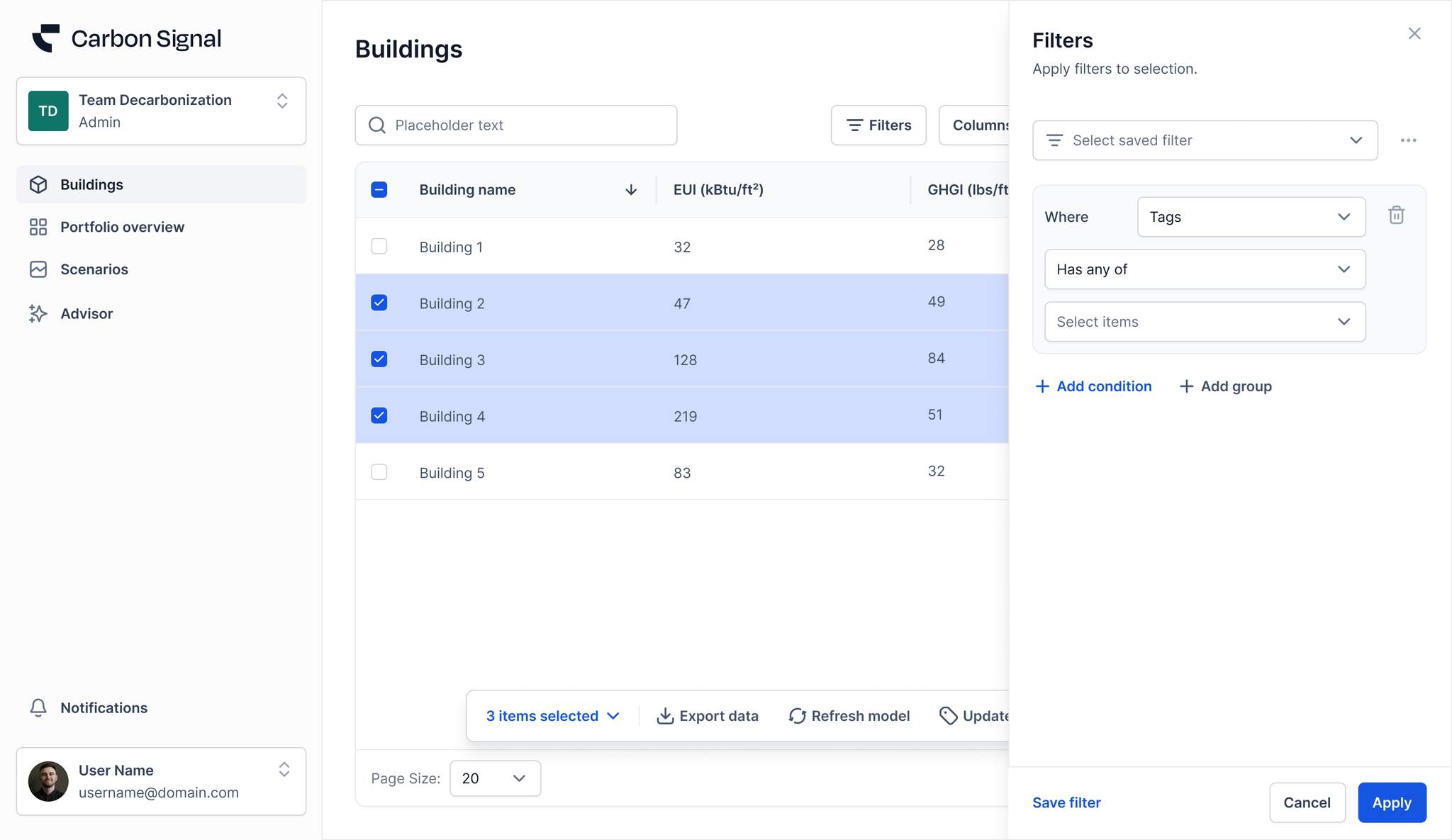
The same filter drawer appears on the Buildings page, Portfolio Overview, the Interventions analysis tab, and the Performance standards analysis tab. It is also used to set the coverage rules of a performance standard. On the interventions view the criteria list additionally covers intervention attributes such as payback period, emissions reduction, total cost, and implementation year.
Saved filter views
Once you have built a filter you can save it as a named filter view and pick it up again later from the Select saved filter dropdown at the top of the drawer. A saved view can be renamed, updated with your current conditions, or deleted. Saved views are private to you within the active team and are not shared with other Team Members.
Available Criteria
Each condition can target one of the following building attributes:
- Text: Building name, City, State/Province, Country
- Single select: Calibration status, Data adjustments, Data quality, Primary occupancy type
- Multi select: Tags, Utilities
- Number: Floor area, Emissions, EUI, GHGI, Model calibration year, Energy Star Score
- Location: Location
The type of the criterion determines which operators are offered, as described below.
Available Operators
For text criteria such as Building name or Country:
- Is – matches exact value
- Is not – excludes a specific value
- Contains – matches if the value includes the specified text
- Does not contain – matches if the value does not include the specified text
- Starts with – matches if the value begins with the specified text
- Ends with – matches if the value ends with specified text
For single select criteria such as Calibration status or Primary occupancy type:
- Is one of – matches any of the selected values
- Is none of – excludes all of the selected values
For the multi select criteria, Tags and Utilities:
- Has any of – matches if at least one of the selected values is present
- Has all of – matches only if every selected value is present
- Has none of – excludes buildings carrying any of the selected values
- Is empty and Is not empty – match buildings with no values, or with at least one
Tag values are drawn from the tags already defined on your team.
For number criteria, such as Floor area or EUI:
- is equal to – matches if the value is exactly equal to the specified value
- is greater than – matches if the value is greater than the specified value
- is less than – matches if the value is less than the specified value
- is greater than or equal to
- is less than or equal to
For the Location criterion:
- Is inside of – matches buildings that fall inside an area you draw
- Is outside of – matches buildings that fall outside it
Choosing Location opens a map where you draw one or more shapes to define the area.
Using Condition Groups
- Add a Condition Group
Click “+ Add Condition Group” to create a logical block of filters.
- Specify Your First Condition
- Select the criterion, operator, and value to define this initial condition.
- To add another condition within the same group, click “Add Condition”.
Each new Condition Group starts with one condition by default.
- Set Condition Group Logic
- AND: All conditions in the Condition Group must be true for a building to match
- OR: At least one condition in the Condition Group must be true for a building to match
If your Condition Group contains more than one condition, you will be required to select either AND or OR logic.
- Combine Condition Groups
When adding multiple Condition Groups, set the logic (AND or OR) that defines how those groups interact.
Example
Local Law 97 (Regulatory) Readiness
- Group 1 (AND):
- City Is New York City
- Tags Has any of Office
- Area > 25,000 ft²
- GHGI > 5.93 lb/ft²
(OR)
- Group 2 (AND):
- City Is New York City
- Tags Has any of Multifamily
- Area > 25,000 ft²
- GHGI > 7.38 lb/ft²
This query identifies buildings in New York City that require emissions reductions to comply with Local Law 97 in 2030:
- Office buildings over 25,000 ft² with GHGI > 5.93 lb/ft²
- Multifamily buildings over 25,000 ft² with GHGI > 7.38 lb/ft²
This query is useful for flagging buildings that are likely to need energy efficiency retrofits or other emission-reducing interventions to meet compliance requirements.